
Time-based triggers
Fire or release Titan playback user numbers at exact times, with weekday selection, date ranges, enabled-only dates and disabled dates.
Titan Scheduler is a lightweight local web app for scheduling Avolites Titan playback user numbers by time, weekday and date. Use it for regular room looks, timed activations, venue resets, seasonal effects, bar presets, show support cues and more.
Fire or release Titan playback user numbers at exact times, with weekday selection, date ranges, enabled-only dates and disabled dates.
Anything in Titan that can be controlled through a playback user number can be scheduled: standard playbacks, cue lists, chases and preset looks.
Run it on the same Titan Go/Titan Mobile PC, on a compatible Avolites desk, or on another Windows machine sending commands across the network.
Titan Scheduler is designed for practical show-control jobs where a full automation platform would be overkill, but manually firing the same playbacks every day is not ideal.
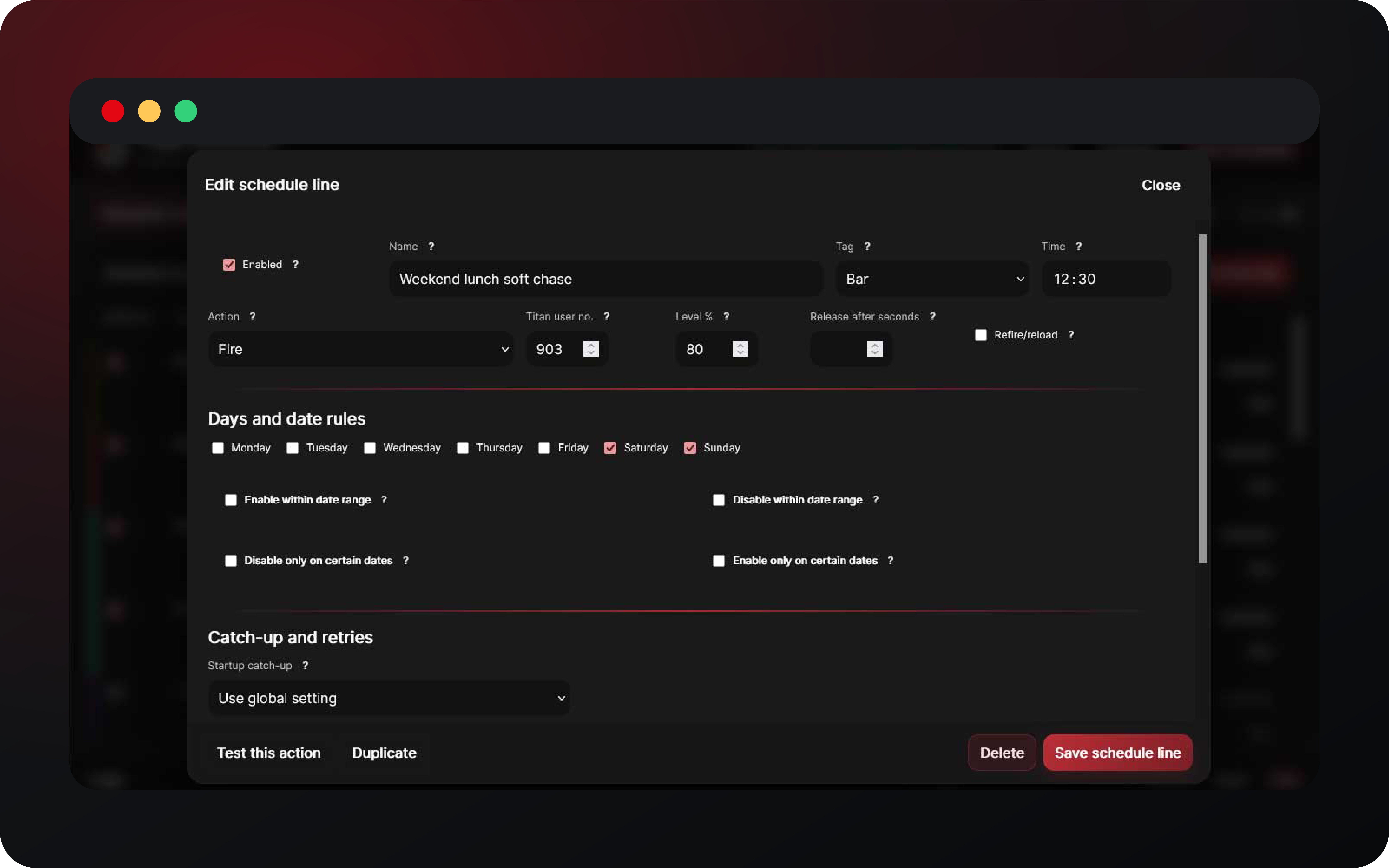
Create clear schedule lines with name, notes, tag colour, Titan user number, level, refire/reload option and optional release timing.
Review scheduled items in month, two-week, week and one-day views so operators can see what is due to happen before it happens.
Dry-run mode lets you build and verify the schedule without sending live commands.
Choose how missed startup events behave. Allow a short catch-up window or skip old events so a restart does not unexpectedly fire stale cues.
Add optional retry attempts for failed Titan commands, including release commands, with per-schedule overrides and global defaults.
Export, import and swap configuration profiles. Automatic backups help recover earlier setup work if you make a mistake.
Useful anywhere Titan needs repeatable timed actions without an operator sitting at the console.
Create the playbacks, cue lists or chases you want to trigger, then assign or note their Titan playback user numbers.
Use 127.0.0.1:4430 for the same machine, or enter the IP of the Titan PC/desk when running on another Windows machine.
Choose days, times, date restrictions, command type, level and optional release-after timing.
Keep dry-run on while configuring. Use row tests or the Settings test button, then disable dry-run when you are ready.



Download the latest Windows build. The first launch creates the local configuration, keeps dry-run mode enabled, and can be set to run automatically with Windows. For older builds and changelogs, see the releases page.
No. Titan Scheduler only sends WebAPI commands to Titan. Your show file, playback programming and cue behaviour remain in Titan.
Yes. If the cue list or chase is assigned to a Titan playback user number and Titan WebAPI can fire that playback, Titan Scheduler can schedule it.
No. It can run locally on the same PC, or on another Windows machine on the same network. For remote use (within the same LAN/VLAN), set the Titan host/IP to the Titan machine or desk IP in the settings page.
WebAPI is supported on the T2 (from version 12.1 onwards), T3, T1+, and full consoles. The T1, Titan ONE dongle and Editor Keys lack the capability of receiving HTTP commands